
Table of Contents
🛡️ TrustBeacon Email Delivery Auditor
TrustBeacon examines your domain’s public email authentication and security settings, then explains its findings, recommended actions, and potential business impact in plain English.
Use it to identify configuration concerns, understand warnings, and decide what deserves attention.
TrustBeacon runs as a WordPress plugin, with optional assistant access through WPVibe.
Download TrustBeacon from WordPress.org
What TrustBeacon checks
TrustBeacon reviews publicly visible records and security indicators associated with your domain.
Email configuration and authentication
- MX records: identify the servers designated to receive your domain’s email.
- SPF: publishes which sending systems are authorized to send email for your domain.
- DKIM: examines discoverable public signing-key records, subject to the limitations of selector discovery.
- DMARC: publishes how receiving systems should handle messages that fail the domain’s authentication and alignment requirements.
These settings concern your domain’s email infrastructure, including services provided by an email provider or a self-managed mail server.
Domain and website security
Supporting checks examine:
- HTTPS availability.
- Selected HTTP security headers.
- Certificate Authority Authorization records.
- DNSSEC indicators, where the server supports the necessary lookup.
- Public Cloudflare and security-plugin indicators.
Each check addresses a particular aspect of configuration. Together, they provide useful diagnostic information without claiming to establish complete security.
Reports that explain what matters
The dashboard presents an overall score, category summaries, and individual PASS, WARN, FAIL, and INFO findings.
Expand a finding to see its recommended action and potential business impact. Reports are timestamped so you can identify when the checks were performed.
Informational findings are excluded from scoring. An unknown result does not mean a check passed, and a warning does not automatically mean your configuration is wrong.
Use the report to guide investigation. Before changing DNS records, confirm the requirements of your actual email services and preserve the existing settings.
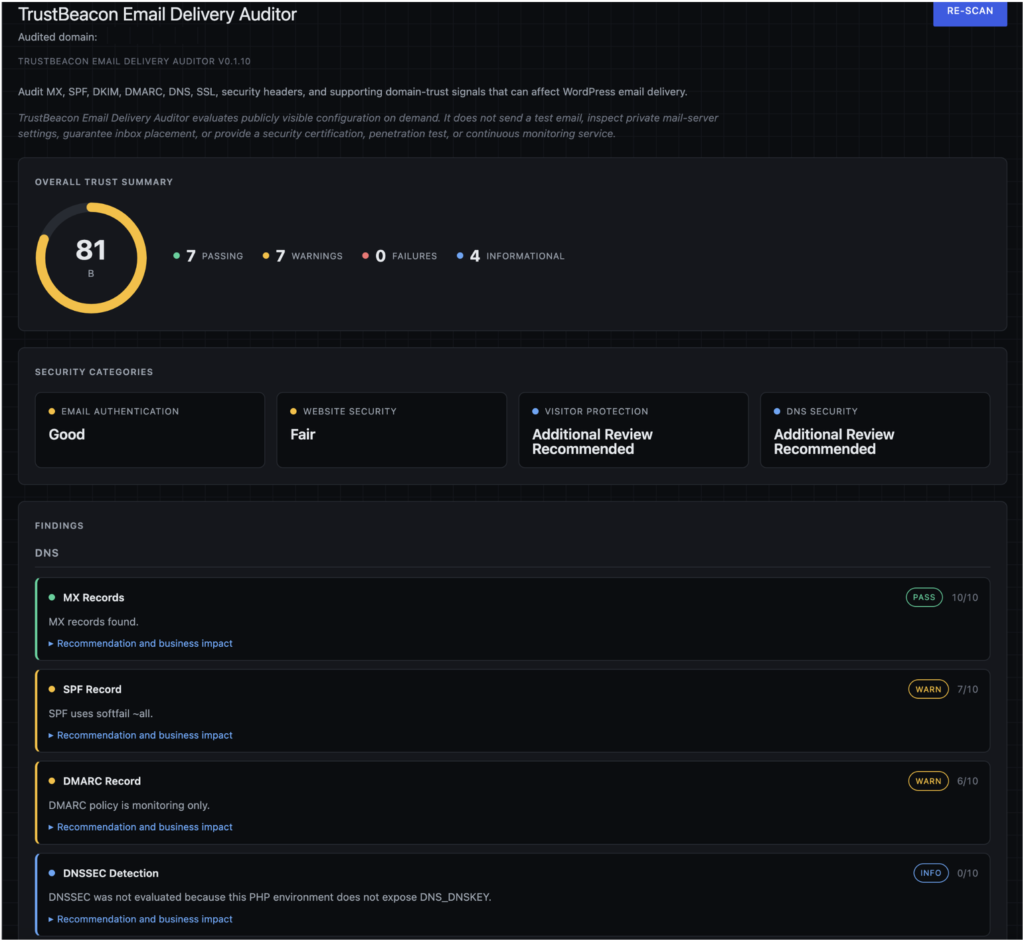
Run an audit
- Install and activate TrustBeacon Email Delivery Auditor.
- Open TrustBeacon in the WordPress administration menu.
- Click Run Audit.
- Review the email authentication and security findings, along with their recommended actions.
TrustBeacon checks the domain of the site where it is installed. Audits run on demand, and the latest report is saved for review.
Optional access through WPVibe
With WPVibe connected and authorized, you can ask an assistant to run TrustBeacon and explain its report.
For example:
Run TrustBeacon’s email authentication and domain security audit. Explain the findings and limitations, and identify the three most useful next steps. Do not change any settings.
On compatible WordPress installations, TrustBeacon provides abilities to run an audit and retrieve the latest saved report. Both require administrator-level permission.
WPVibe is optional and requires its own authorized connection. TrustBeacon remains available through its dashboard without it.
Understanding DKIM results
DKIM uses selector names to locate public signing keys in DNS. Those names vary among email providers and mail servers, and DNS offers no general way to list them all.
Limited discovery may therefore miss a valid configuration. Conversely, finding a public key does not establish that your current email service uses it or that messages are signed correctly.
To confirm actual email authentication results, review the receiving mail system’s SPF, DKIM, and DMARC findings in the delivered message’s Authentication-Results header. TrustBeacon does not send test emails or inspect delivered messages.
Privacy and scope
TrustBeacon reports on public configuration. It does not collect mailbox credentials, private keys, message contents, or visitor information.
It performs DNS lookups and website requests to carry out its checks and stores the latest report in your WordPress database.
When you use WPVibe, the requested report passes through that connector and your assistant service under their respective privacy policies. TrustBeacon itself does not contact an AI service.
What the report can establish
TrustBeacon helps identify public configurations that may need attention. It does not test the entire email delivery path, guarantee inbox placement, or certify that a domain or website is secure. It can inform you about currently available Internet email authentication check parameters.
It does not change DNS records, mail settings, security controls, or website content. Corrections remain under your control.
Get TrustBeacon
Understand your domain’s email authentication and public security configuration—with clear findings and practical recommendations.
Download TrustBeacon Email Delivery Auditor
By Jason Michael Canon, Canon Publishing, LLC.
Privacy Policy | Terms of Service
Why is my email going to spam?
WordPress email delivery may reach spam when the sending domain lacks properly configured SPF, DKIM, or DMARC authentication. Inbox placement can also be affected by the sending server’s reputation, message content, mailing volume, recipient engagement, and whether the From address aligns with the authenticated domain.
Why are MY emails not being delivered?
WordPress email delivery messages may fail because the hosting server cannot send mail, the recipient rejects the sending server, DNS records are incomplete, or email authentication fails. A successful WordPress form submission only confirms that WordPress processed the form; it does not prove that the resulting message reached an inbox.
What do SPF, DKIM, and DMARC do?
SPF identifies servers authorized to send email for a domain. DKIM adds a verifiable signature to outgoing messages. DMARC evaluates authentication and domain alignment, then tells receiving systems whether failed messages should be monitored, quarantined, or rejected. Together, they help reduce spoofing and improve domain credibility.
Does TrustBeacon send a WordPress test email?
No. TrustBeacon evaluates publicly visible DNS, email-authentication, SSL, and domain-trust configuration. It does not send a message through the WordPress mail system, inspect private mail-server settings, or guarantee delivery to a particular recipient or inbox provider.
Can TrustBeacon repair WordPress email-delivery settings?
TrustBeacon Email Delivery and Auditor is read-only. It identifies conditions that may require attention and provides plain-English recommendations and business-impact explanations. It does not automatically change DNS records, hosting settings, WordPress mail configuration, or settings maintained by an external email provider.
Does a passing TrustBeacon audit guarantee email delivery?
No. A favorable audit means the publicly visible signals examined by TrustBeacon appear properly configured. Actual delivery can still be affected by sending reputation, blocklists, message content, rate limits, recipient filtering, SMTP configuration, and other private systems that TrustBeacon cannot inspect.
How do I correct an SPF warning?
First, identify every legitimate service that sends email using your domain. This may include your hosting account, Google Workspace, Microsoft 365, a WordPress SMTP service, newsletter software, contact forms, or a transactional-email provider.
Check whether the domain already has an SPF TXT record. A domain should have one consolidated SPF record, not several separate SPF records. Add the sending mechanisms required by each legitimate provider to the existing record.
Do not copy another website’s SPF record. Use the exact include values supplied by your email providers. After confirming that every legitimate sender is represented, test the revised record before considering stronger enforcement such as -all.
Should I change SPF from ~all to -all?
~all applies a soft failure to unauthorized senders, while -all applies a hard failure. Stronger enforcement can improve protection against domain spoofing, but it can also reject legitimate messages if a valid sending service was omitted.
Before changing to -all, inventory all legitimate senders, verify that the SPF record includes them, and test mail from WordPress, business email, newsletters, forms, and other services.
How do I configure DKIM?
DKIM must normally be enabled through the service that sends your email. The provider supplies a selector and one or more DNS records, usually TXT or CNAME records.
Add the supplied record through the domain’s DNS provider. The record name commonly contains the selector followed by ._domainkey, but the exact selector and value must come from the sending provider. After DNS propagates, return to the email provider and complete its verification process.
How do I configure DMARC?
DMARC is published as a TXT record for _dmarc.yourdomain.com. Before enforcing quarantine or rejection, confirm that legitimate mail passes SPF or DKIM and aligns with the visible From domain.
Many administrators begin with a monitoring policy such as p=none and review DMARC reports. After legitimate senders have been identified and corrected, enforcement can be increased gradually to p=quarantine and eventually p=reject.
Where do I add SPF, DKIM and DMARC records?
These records are added through the service that controls your authoritative DNS. That may be Cloudflare, Hostinger, GoDaddy, Namecheap, your hosting control panel, or another DNS provider.
They are not normally entered inside WordPress. If you are unsure which company controls DNS, check the domain’s authoritative nameservers or ask the hosting provider.
Should I change my MX records?
Do not change MX records merely because another email-related check produced a warning. MX records control where incoming email is delivered.
Change them only when migrating email providers or when the current mail provider confirms that they are incorrect. Using the wrong MX records can stop the domain from receiving email.
Can TrustBeacon make these DNS changes automatically?
No. TrustBeacon is read-only. It identifies publicly visible configuration conditions and explains what should be reviewed. DNS changes must be made through the appropriate DNS or email provider.
This prevents the plugin from making a generic change that could interrupt legitimate email service.
External Service Disclosure
TrustBeacon Auditor performs remote HTTPS requests only to websites selected by the site administrator.
Data transmitted:
- Domain name being audited
- Standard HTTP request headers
- Plugin User-Agent identification string
No personal visitor information is collected, stored, or transmitted.
TrustBeacon Auditor does not utilize any third-party commercial APIs.
Privacy Policy
Terms of Service
Author
Jason Michael Canon
Canon Publishing, LLC